The Highlights + Hours Log Method
You don't have to photograph every worksheet. Save one or two favorite pieces per subject each week, type your hours into the Hours Log, and FolioKid still produces a complete, accurate portfolio — under ten minutes a week, total.
1Set up once
- Pick your state in Account → Portfolio settings, and add each student with their grade. State requirements (subjects, hour targets, test years) apply automatically — even when you're documenting lightly.
- In Account → PDF sections, switch on any extras you want in every export — the Reading List is the big one for this method — and switch off anything you don't need. Each student's ⚙️ Portfolio Setup page can override these later.
2Once a week: pick your highlights
Gather the week's best work — the essay they're proud of, the science experiment photos, the math test. Then one batch upload:
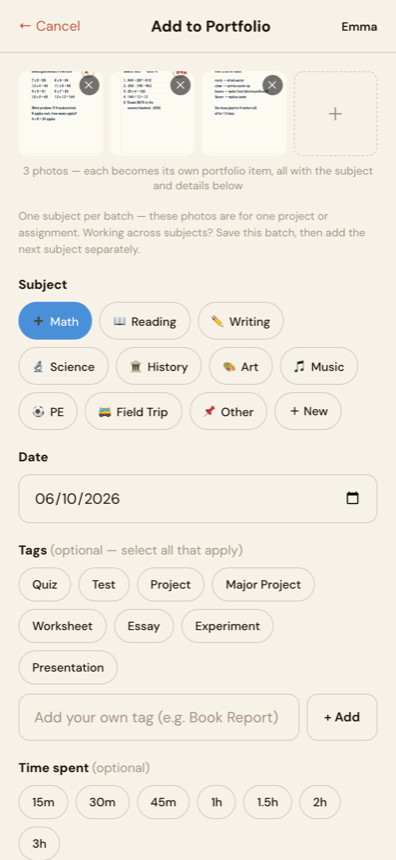
- Add Item → Upload Files — select up to 10 photos at once and they all save in one go, each becoming its own portfolio item.
- One subject per batch — every photo in the batch shares the subject, date, and notes you pick. Uploading the math test and the science experiment? Save the math batch first, then Add Item again for science. It's two quick rounds, not ten.
- Tag the important ones: Test, Project, and especially Major Project. Tags decide what leads your portfolio later.
- Backdate to the day the work happened — the date picker defaults to today but goes back as far as you need.
3Then log your hours — no photos required
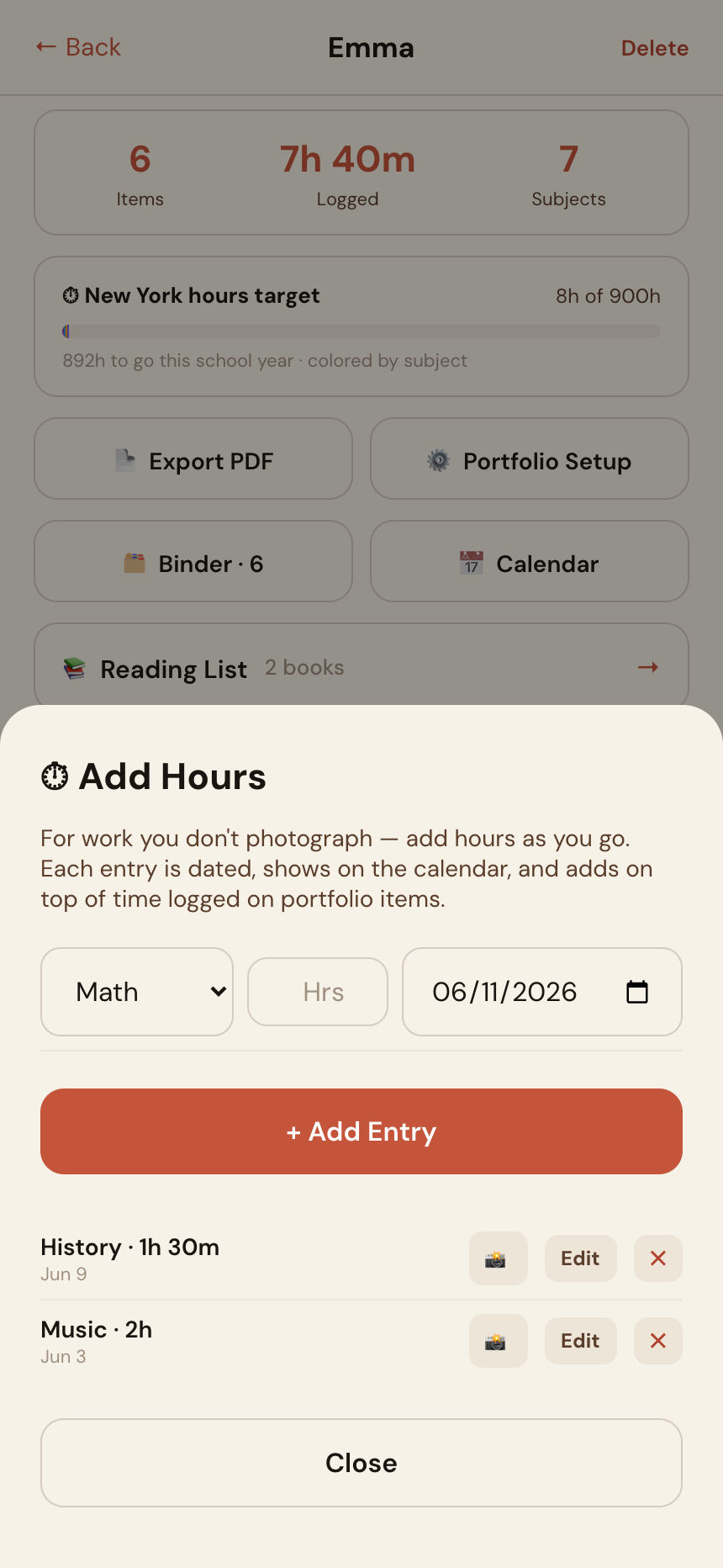
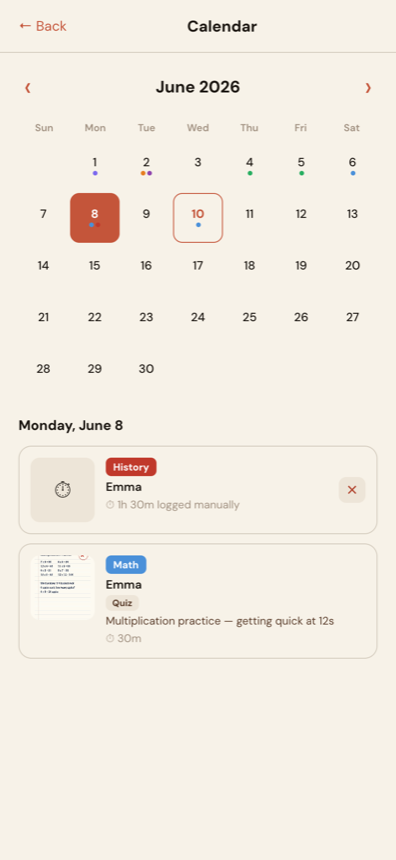
On the student's page, tap ⏱ Add Hours and add an entry for each subject you taught: pick the subject, type the hours, set the date. Entries cover subjects you didn't photograph at all, and they're always yours to manage — every entry appears on the calendar and can be edited or deleted later. Hours you log here are added to any time logged on portfolio items, so there's no double counting, and:
- The hours progress bar stays accurate against your state's target.
- Subjects with hours but no photos still count as covered on your PDF's subject checklist.
- Your PDF includes a short note telling the evaluator that the hours combine time logged on the photographed work with instruction you recorded yourself — transparent, with no inflated numbers.
4Export a portfolio that doesn't look thin
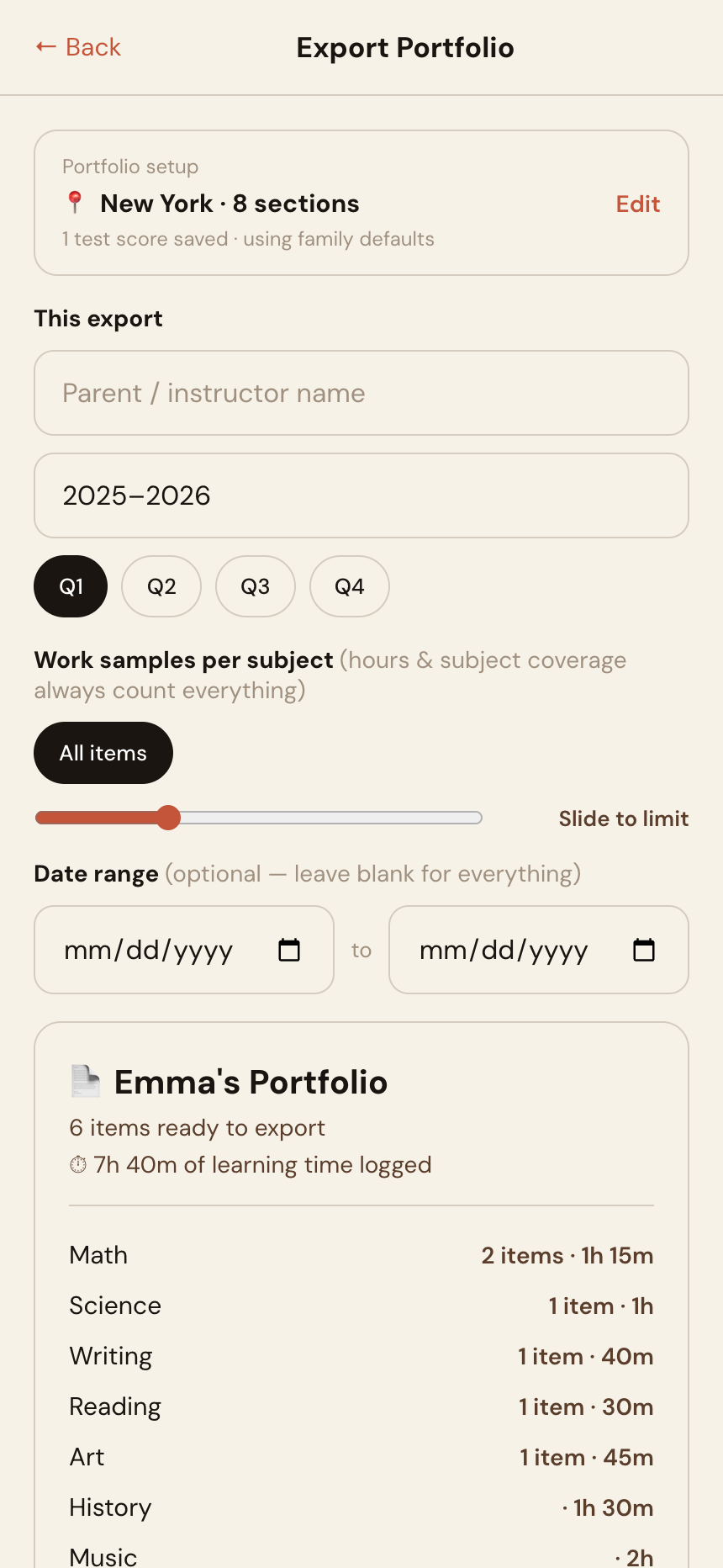
- Open Export PDF. The state template, your hours, and the subject checklist are all filled in from steps 2–3.
- Use the work samples slider to control how many pieces print per subject, with ⭐ Major Projects & Tests first — your strongest work leads, and the PDF notes that coverage and hours reflect everything, not just the included samples.
- Test scores and per-child section overrides live in ⚙️ Portfolio Setup on the student's page (saved per student, entered once) — the export screen shows a summary of your setup with a shortcut to edit it.
- Generate the PDF — save it to email your evaluator or print it for an in-person review — or send a 🔗 read-only share link they can open without an account.
Ten minutes a week. One complete portfolio. Free to start — no credit card required.
Create Free Account →